Wingdings Font Download & Install Guide (2026 Updated)
Want to add a checkmark, a pointing finger, or a skull and crossbones to your 2026 project without hunting for clip art? The Wingdings font is the original icon library that remains a staple of digital communication, now fully compatible with the latest operating systems.
Unlike standard fonts that display letters, Wingdings is a symbolic typeface that turns keystrokes into instantly recognizable pictograms. Whether you are a teacher creating handouts, a designer mocking up a project, or an office worker spicing up a report in Microsoft Office 2026 or WPS Office 2026, this guide will show you exactly how to download, install, and use Wingdings on Windows 11 (24H2), macOS Sequoia, Android 15, iOS 18, and your website.
What is the Wingdings Font?
Wingdings is a “dingbat” font, meaning it uses decorative symbols instead of alphanumeric characters. Designed by renowned type designers Charles Bigelow and Kris Holmes and released by Microsoft in 1990, it was included in early Windows versions to give users access to visual elements without needing graphics software.
It’s not just one font; it’s a family:
- Wingdings 1: The original set containing the most famous icons (arrows, emoticons, hand gestures).
- Wingdings 2: Focuses on ornamental designs, checkboxes, and more complex symbols.
- Wingdings 3: Dedicated almost entirely to a vast array of arrows.
Why Use Wingdings font in 2026?
You might wonder why you need a 36-year-old font in the age of AI-generated images and SVG icons. Here’s why Wingdings remains relevant in 2026:
- Instant Icons: It provides vector-based symbols that scale infinitely without losing quality perfect for the latest high-resolution 8K displays.
- Universal Compatibility: It is a core part of the Microsoft ecosystem. If you send a Word 2026 document using Wingdings, the recipient will always see the correct symbol.
- Lightweight & Fast: A font file is ~80KB. It’s much faster to load a font in a document than to embed multiple image files.
- Keyboard Shortcuts: Once memorized, typing “J” to get a smiley face is faster than searching through an emoji picker in Windows 11.
How to Download and Install Wingdings Font (2026 Guide)
Because Wingdings is a proprietary Microsoft font, it is automatically included with Windows. However, if you are on a different operating system or need to reinstall it, here is how to get it.
1. Installing Wingdings font on Windows 11 (24H2 Update)
Note: Wingdings usually comes pre-installed. Only follow these steps if it is missing.
- Download the Font: Download the TTF (TrueType Font) version from a reputable font archive.
- Locate the File: Navigate to your
Downloadsfolder. The file will likely be in a.zipfolder. Right-click it and select “Extract All.” - Install:
- Right-click on the
wingding.ttffile. - Select “Install” from the context menu.
- Windows 11 Tip: You can also drag and drop the font files directly into the Fonts settings page (Settings > Personalization > Fonts).
- Right-click on the
2. Installing Wingdings font on Mac (macOS Sequoia)
Macs do not come with Wingdings pre-installed. You must download the TrueType file to use it.
- Download: Get the
wingdings.ttffile from a reliable font website. - Install:
- Double-click the downloaded font file.
- A pop-up window will appear in Font Book, showing a sample of the font.
- Click the “Install Font” button at the bottom.
- Verification: The font will now be available in apps like Pages, Word for Mac, and Keynote.
3. How to Use Wingdings font on Android 15
Android does not allow you to change the system font to Wingdings easily, as it would make your phone menus unreadable. However, you can use it in specific creative apps.
- Download: Save the
wingdings.ttffile to your device. - Get a Font App: Download a font manager app like “iFont” from the Google Play Store.
- Apply in Apps:
- Open iFont and navigate to the local file.
- Select the Wingdings font.
- Note: This usually only makes the font available for specific graphic design apps (like Canva or CapCut) that allow custom font selection, not for your SMS text messages.
4. How to Use Wingdings on iPhone (iOS 18)
As of iOS 18, installing custom fonts is easier than ever, thanks to the Fonts section in the Settings app.
- Download: Download the
wingdings.ttffile onto your iPhone via Safari or Files app. - Install Profile:
- Go to the Files app and tap on the font file.
- Tap the “Share” icon and scroll down to “Install Fonts”.
- iOS will guide you to create a configuration profile. Tap “Install” in the top right corner.
- Use: The font will now be available in apps that support custom fonts, such as Pages, Microsoft Word, and Canva.
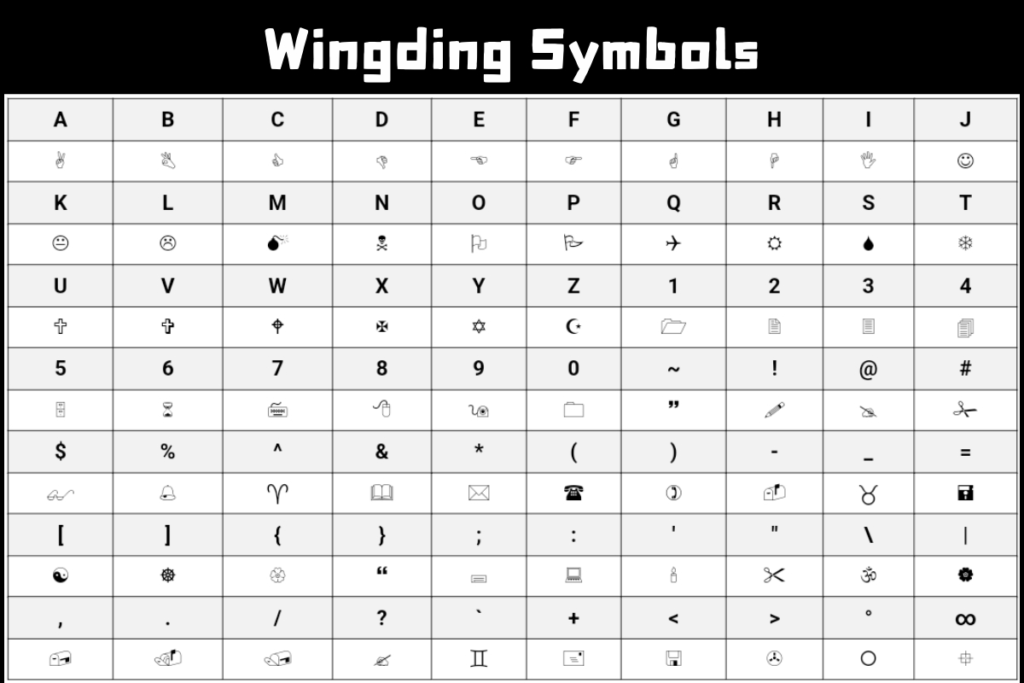
Complete Wingdings Symbol Chart (2026 Reference)
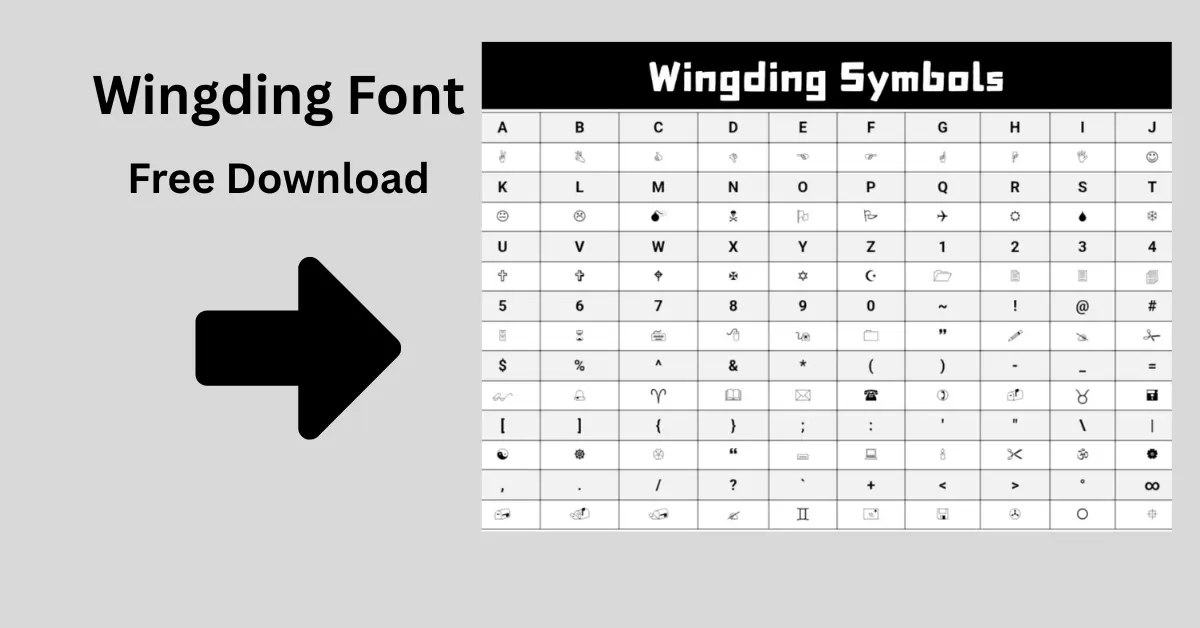
To use Wingdings effectively, you need to know which keys produce which symbols. Here is a quick cheat sheet for the most popular symbols in Wingdings 1:
Wingdings vs. Webdings vs. Emojis (2026 Context)
It’s easy to confuse the Microsoft symbol fonts. Here’s the difference:
- Wingdings: The original. Symbols are often abstract or practical (hands, scissors, pencils).
- Webdings: Released later with Windows 95, Webdings focused more on “internet” concepts (globe, phone, lock) and computer interface icons.
- Emojis: These are not fonts but Unicode characters. They are standardized pictures that work across all platforms but look different on an iPhone 16 vs. a Samsung Galaxy S25.
Frequently Asked Questions (FAQs)
The Final Verdict
While it may seem like a relic of the 90s, the Wingdings font remains one of the fastest ways to insert functional icons into your documents. Its simplicity and zero-cost availability (for Windows users) make it a timeless tool for quick visual communication, now fully optimized for the latest operating systems and software of 2026.